Enhanced Rubrics for the Win

How this will help
Sharing feedback with students on their assignments and assessments has gotten easier thanks to the new Enhanced Rubrics features now available on Canvas.
Kalpana Joshi and Jennifer Love, business systems analysts with the University of Michigan Information and Technology Services Teaching & Learning Group, introduced these features during their presentation at the 27th annual Enriching Scholarship Conference. Key updates of the Enhanced Rubric included:
- Drag-and-Drop
- Copying and Duplicating Elements
- Flexible Ordering
These updates, based on feedback from instructors and course designers, can make your rubric management easier and ultimately help provide students clear and constructive feedback.
What are rubrics?
Rubrics are tools that help provide clear, consistent guidelines for grading assessments. For instructors, rubrics help ensure that your students are being evaluated fairly, as well as providing easy feedback to students on assignments. For students, rubrics help provide clear expectations for those assessments.
In Canvas, you can set up rubrics attached to assessments that allow quick, clickable options to speed up grading while providing important feedback.
Editing Rubrics
After designing and developing a course, instructors often need to update or create new rubrics as they add assignments or need to clarify expectations. Enhanced Rubrics provide more options for iterating your rubrics without needing to start over every time an alteration is needed.
Copying and Duplicating Elements
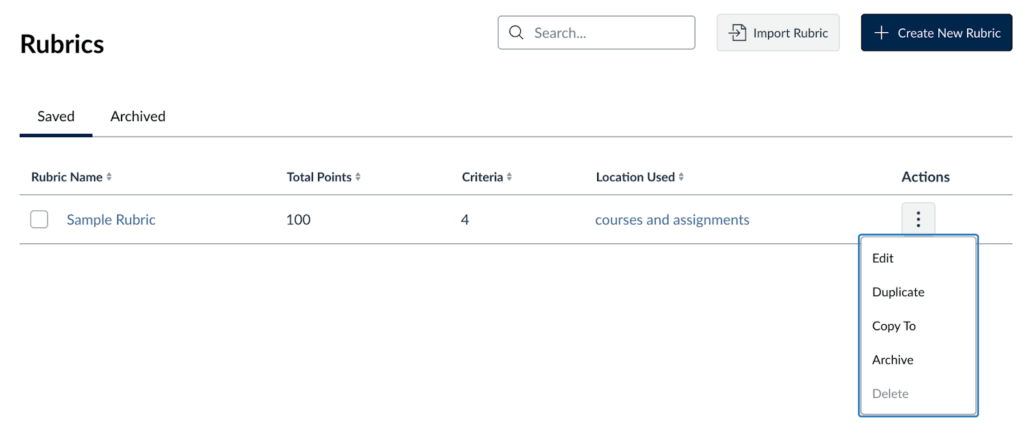
One important consideration within Canvas is that rubrics that are used in more than one assignment can’t be fully edited once students have engaged with them. However, if you need to tweak an existing rubric to fit a new course or assignment, you can duplicate the rubric so that you are not starting from scratch.
In the actions column on the rubrics home page, click on the three dots and select “Duplicate.” You can then edit the elements in the new rubric before adding it to a new assignment in the course. If you want to edit individual criterion details, you can click on the adjacent pencil icon. Elements of that criterion that can be edited include the name, description, point value, rating name, and rating description.
When you want to replicate a rubric for a different course, which helps to maintain assessment consistency across different courses, you can select the “Copy To” option. From there, a pop-up box will appear asking you to select the intended course for the rubric. You can also choose to copy the rubric to a specific assignment.
Rearranging Elements
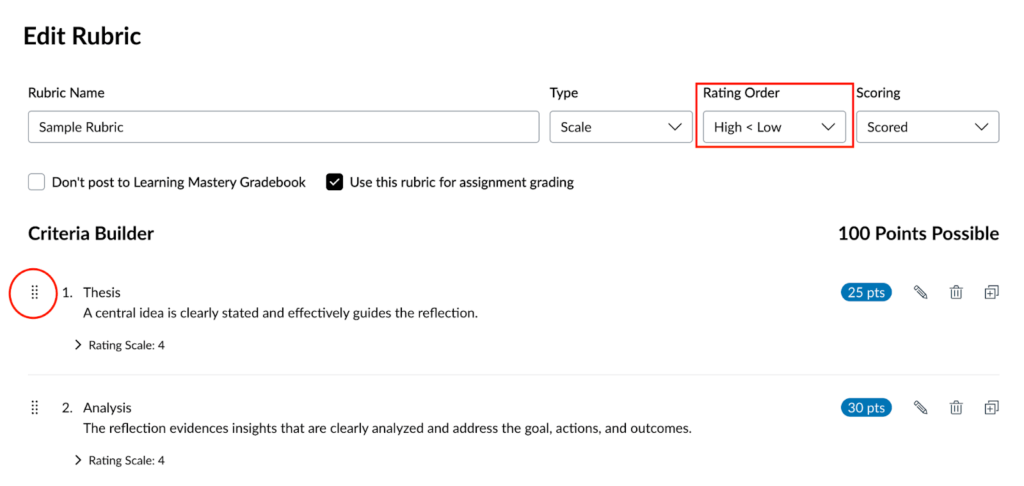
Want to rearrange your criteria and not have to create the rubric from scratch? The Enhanced Rubric now allows you to change the order of your criteria with a simple drag-and-drop.
Select the columns of dots to the left of the individual criterium with your mouse, then drag it into the desired order.
If you’d like to alter the rating order, you can now change that using a drop-down menu at the top right of the rubric’s home page.
More New Features
Instructors can now import and export rubrics using the new feature on the rubrics landing page. Existing rubrics can be downloaded in CSV format. In the Gradebook, you can upload a CSV file to create one or more rubrics.
The Enhanced Rubric features are also fully integrated with the assignments section of your courses, so you can add or create rubrics more easily. You can also archive rubrics if you want to store old rubric content that’s not actively connected to an assignment. To archive a rubric, click the Options icon in the three-dot menu next to the rubric, then click Archive. To add an archived rubric to an assignment, you must first un-archive it, which you can do in the Archived section of the rubrics home page.
Finally, there are additional views available in Enhanced Rubric – traditional, horizontal, and vertical.
Practical Tips
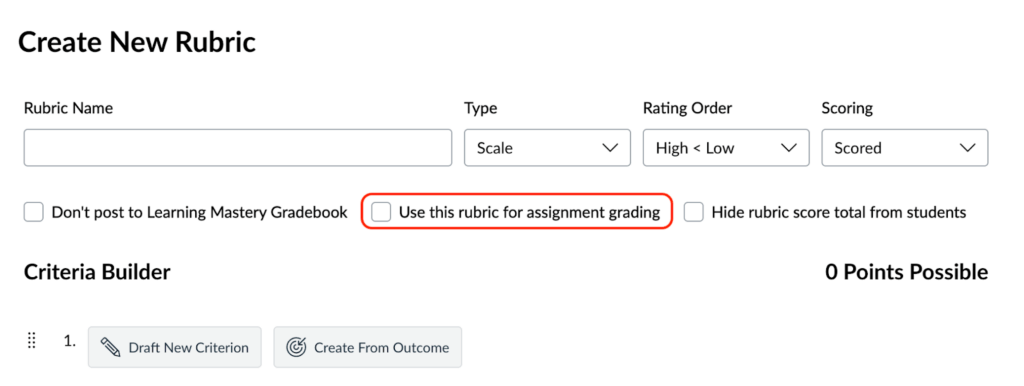
- The former “Add Rubric” button is replaced by a “Create New Rubric” button at the top right of your rubric page in Canvas.
- If it is not a graded assignment, it will not allow you to add a rubric.
- If a rubric is used for multiple courses, once students have engaged with the assignment, editing will be limited.
- Don’t forget to save your work!
- When creating a rubric, make sure to click the “Use this rubric for assignment grading” so that student scores are calculated automatically.