Unlocking the Full Potential of Google Gemini
How this helps
As the campus emerges from its summer slumber, instructors are preparing for the fall semester by diving into the latest research, brainstorming creative activities, and designing impactful materials. Google Gemini can do all of this — and more.
At Information and Technology Services, we are constantly exploring and identifying ways technology, including generative AI, can support our faculty and staff with their course preparation, development and design. Gemini’s capabilities can support much of that work.
Gemini is Google’s flagship generative AI chatbot and virtual assistant. It can save time, personalize learning, and assist educators with a variety of tasks, including generating lesson plans, developing differentiated activities, and breaking down complex concepts.
All University of Michigan faculty, staff, and students have access to Gemini through their ‘umich.edu’ accounts. That means your data remains private and secure, and interactions with Gemini are not used to train Google’s AI models.
Gemini can be most closely compared to U-M GPT, but offers more features than its counterpart.
Gemini vs. U-M GPT
| U-M GPT | Gemini | |
|---|---|---|
| Key strengths | Safe, fully accessible, private environment for U-M specific tasks. | Quicker with complex tasks, can understand many types of information (like videos), and often has more recent knowledge. |
| Limitations | File upload size limits. Knowledge is typically older. | Not fully accessible. |
| Features | Several foundational and reasoning models; has some U-M content. | Canvas feature, deep research, connects to Drive, microphone/listen to chat, verify responses, Gems. |
Gemini Tools
Gemini offers a series of tools designed to optimize its capabilities and be customized to achieve your desired outcome. The tools can be selected when clicking on the ‘+’ symbol in the Gemini prompt bar.
Guided Learning
With Guided Learning, Gemini acts as a personalized AI tutor, taking you step-by-step through the results. The information is scaffolded and presented in an instructional way for the user, offering different topics to explore based on the initial question.
For example, we prompted Gemini with this query while selecting the Guided Learning tool: “I am an English major and I want to understand what an LLM is.”
The response included a summary of how large language models work, how it scans huge libraries of text and learns about writing patterns.
It then offered three lessons:
- The digital library (training) — How an LLM reads billions of pages to learn grammar, tone, and style.
- The map of meaning (semantics) — How models turn words into mathematical coordinates to understand relationships between concepts.
- The predictive writer (generation) — The mechanics of how a model actually decides which word comes next when responding.
We selected the third option, and the tool provided a lesson on how LLMs actually write, with a series of additional details and sources for a deeper dive. As we continue to interact with Gemini, the learning model guides us through interactive prompts to check learning and provides feedback, always shaping the conversation around concepts that are familiar to an English major.
Create Images
This is a text-to-image tool that generates imagery or graphics — great for developing course and presentation materials, including Google Slides.
Based on the previous example, you could create a graphic that explains LLMs with this prompt: “I want to create a simple image that explains LLMs.” Here was our output:
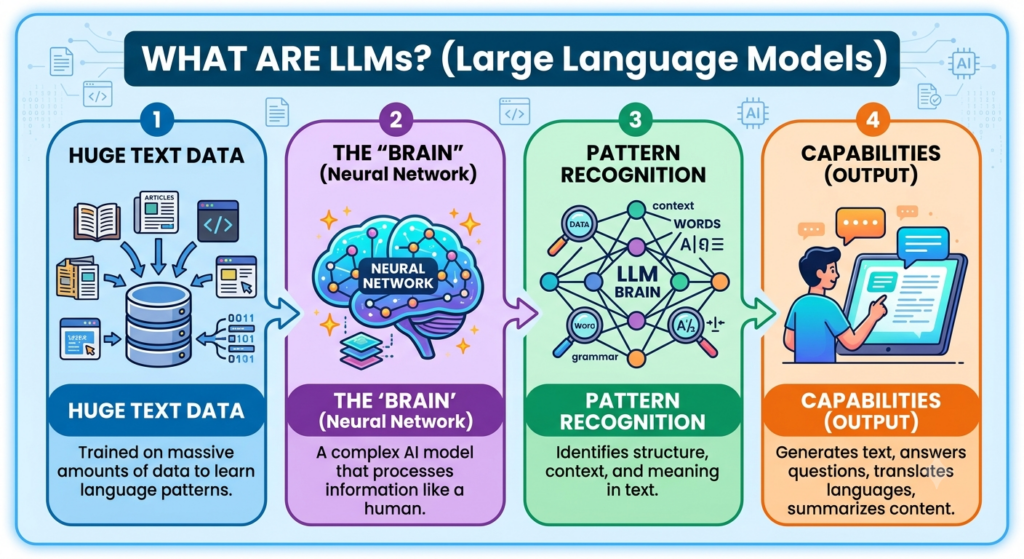
Once we have an image, we can download, copy, and share the image. We can also use the Adobe integration in Gemini for basic image editing.
Canvas
Not to be confused with the learning management system, the Canvas tool in Gemini provides a split-screen workspace with the prompt results appearing in an editable working document. The Canvas document has many of the same features as a Google Doc and also includes features such as tools for adjusting tone, length, and AI-suggested edits. Other helpful tools include:
- Built-in Gemini. Highlight any portion of the text, and a Gemini prompt box appears and you can ask it to expand or adjust the content.
- Create new content. In the Canvas document, you can create different types of outputs, including web pages, infographics, quizzes, and flashcards.
From the Canvas, you can share the chat conversation in Drive, export the content to Google Docs, or copy the text to use elsewhere.
Deep Research
You can potentially save hours of time locating potential research sources with the Deep Research tool. The tool generates a research plan that you can review and edit before beginning, giving you control over the process. It produces comprehensive reports from a broad variety of sources, with citations linked in the report so you can verify the information. Additional features include:
- Curating sources. You can choose to include Google Drive documents, emails, prior Gemini chats, and general Google searches. The tool provides a list of sources used at the end of the output, as well as those considered but not included.
- Create materials. You can export the final research report as a Google Doc, or to your Google Classroom. You can also create flashcards, quizzes, or infographics from the research.
Gems
Gems are similar to U-M Maizey, providing an option to create a personalized, expert chat tool. These can be used for almost any aspect of your work, from lesson planning to personalized learning to research. Gems are based solely on your own sources, not internet searches. Examples can include a Gem that formats citations in Chicago Manual style or drafts alt-text for your photos.
The Gem remains in your Gemini toolbox, so whenever you need to deploy it, it’s ready for you. Plus, you can share Gems with your U-M colleagues.
Tips on creating Gems
- Persona and audience. When writing instructions to create a new Gem, identify what the Gem is acting as, such as a faculty member or accessibility expert. After explaining what it’s going to create, be sure to identify the target audience for the Gem (students, fellow U-M staff, etc.).
- Follow a framework. “You are _____ at a large university in the U.S., creating a _______ for _______. It must include ____, ____, and ____.”
- Use Gemini to edit. Click the Gemini edit tool to receive suggestions to improve the tool’s performance.
- Set a default tool where appropriate: Select Gemini tools like Guided Learning, image creation, Deep Research, or the Canvas depending on what you will use the Gem for.
Practical Tips
- Log in with your U-M credentials. To access the privacy protections offered through the university, make sure to sign in with your “umich.edu” address.
- Choose your model. Gemini offers a range of AI models designed for different tasks, such as advanced coding, deep research, or audio and video capabilities. Research the options to choose which best supports your work.
- Access Drive files. Gemini works within the Google Workspace and connects seamlessly to your existing Docs, Sheets, and other Drive files. You’re limited to 10 sources per chat.
- Pin past chats. The menu on the left of the home screen allows you to pin any chats you want to easily access.
- Connect to your Google apps. In the Settings wheel, click on Connected Apps to determine which applications Gemini can access. This helps remove the step of uploading files and references for each new chat. Once you have connected apps, simply type ‘@’ into the Gemini prompt and select which apps you wish to source.
Resources
GenAI Workshop Series — A series of hour-long workshops available on-demand that cover the basics of GenAI and its applications in academic and everyday settings. Those who complete the courses, which are slotted into beginner, intermediate, and advanced levels, are eligible to earn GenAI badges.
Teaching with GenAI — A self-paced course for U-M instructors and staff seeking skills on integrating GenAI tools in their teaching practice. Those completing all eight modules receive a Teaching with GenAI badge.
Your essential guide to Google AI for college — Written for students, but a great resource for anyone using Google tools.
Additional ITS and U-M resources:
- GenAI 101 An Overview of Generative AI (self-paced microlearning course)
- Generative AI Prompt Literacy (self-paced course)
- U-M Generative AI Website
- ITS AI Services and Roadmap at U-M
- Generative AI on the Academic Technology@Michigan website
- Getting Started with Generative Artificial Intelligence: U-M Instructor Guide
- Course Policies & Syllabi Statements
- Learning with GenAI
Angela Marocco is an instructional learning specialist lead for University of Michigan Information and Technology Services. This article is based on her workshop, “From Idea to Insight: Gemini for Education,” part of the Generative AI Workshop Series offered by ITS Teaching and Learning.